Okay, so you’ve developed a presence on Facebook for your business and want to start using Facebook Ads, but where do you start? How do you advertise on Facebook? When you start delving into Facebook’s advert guides, it can all feel a bit confusing, but don’t fret! We are here to help guide you through the process. Since our last post about how to advertise on Facebook, their Adverts are still a very strong tool, but now with more options. Follow these tips and you will be up and be advertising on Facebook in no time.
Facebook Reach / Audience
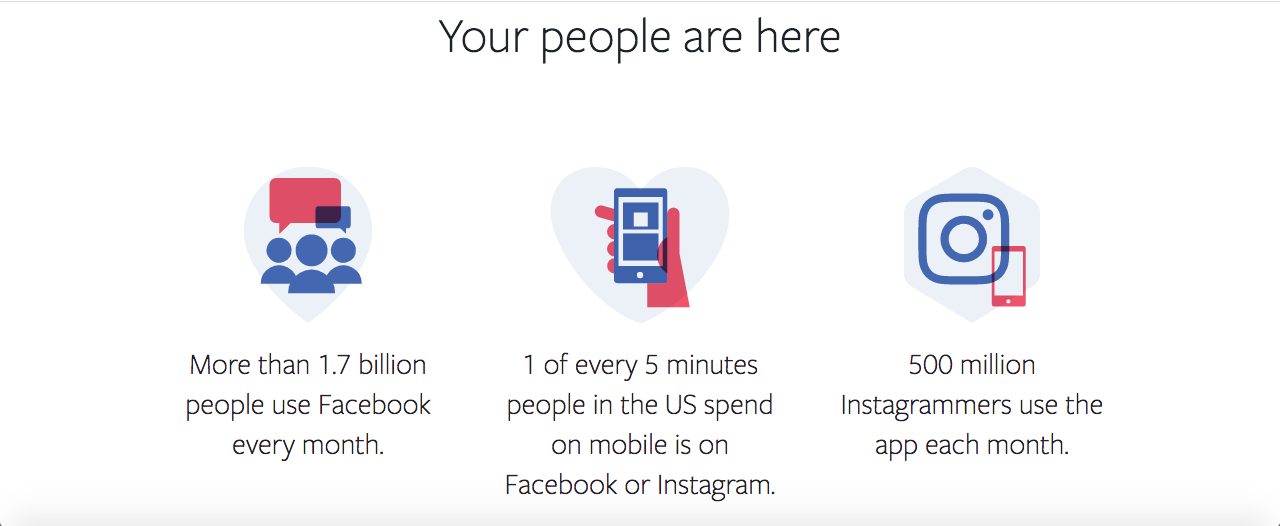
Before we begin, let’s take a look at Facebook’s stats, which are quite impressive. Back in April of 2012, Facebook bought Instagram and as a result, it has opened up your reach to a wider audience. This means you can link your business’ Instagram page to your Facebook Advert account and your ad will automatically show up on both platforms. Together Facebook and Instagram have almost 2 billion users visiting their sites each month. Even with competitors like Twitter, LinkedIn and Snapchat, Facebook is still number one when it comes to the number of users and potential consumers.
Do You Have a Facebook Business Page?
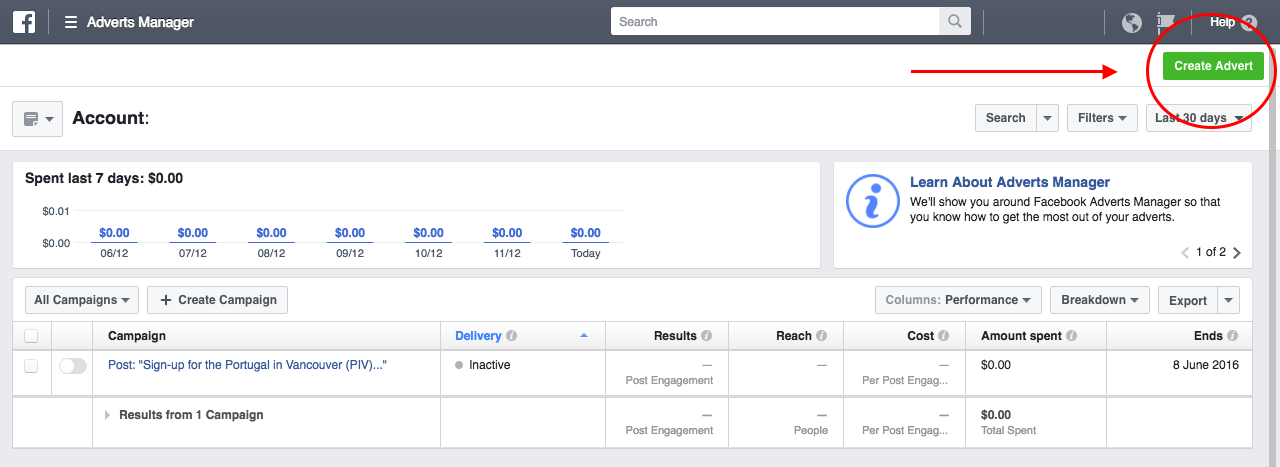
Before you start, make sure you have a Facebook Business Page as you cannot create ads via your personal Facebook page. While there are a number of ways to access Facebook ads, we recommend signing up for “Business Manager” and creating an “Adverts Manager” account to design and manage your ads. One of the benefits of doing it this way is that it allows businesses to give access to multiple people working together on an advert campaign and to easily see who is working on what. You can even assign your employees specific role-based access to adverts in order to control what they can see on your account. Once you’ve signed up for an Adverts Manager account it will walk you through each step.
Determine Your Marketing Objective
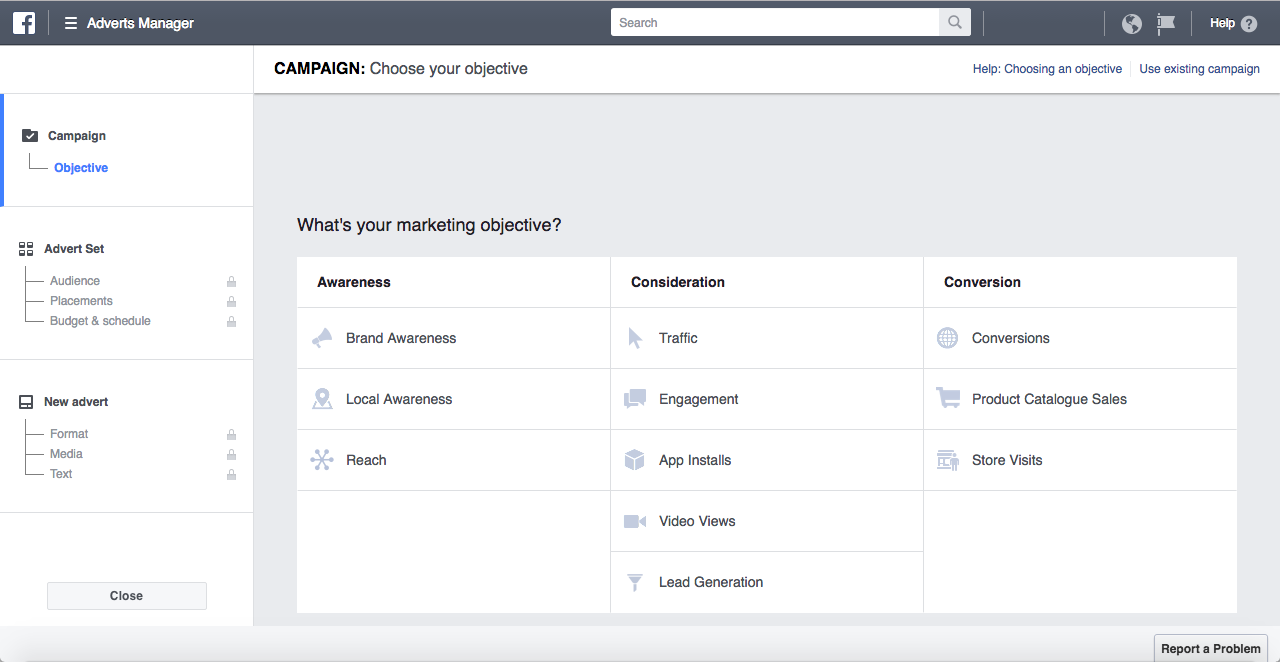
Every campaign starts with an objective so determine what yours is. Not sure? Facebook helps you determine your marketing objective by defining each type of objective they offer to help guide you to the outcome you want for your campaign. When you are setting up your ad campaign, you will see a list of all the possible objectives (see image below). You can click on each objective for its definition to help you decide which one is best for you and your business goals.
For more detailed information, read Facebook’s “Advertising Objectives” article in their help section.
Some of these options offer what Facebook calls a “split test” which is also known as A/B Testing. It allows you to create two adverts to test and compare which one does better. Speaking of testing, it’s always a good idea to test two adverts at the same time. They should only have one to two different variables such as different images. Run them for 1-2 days and see which one does better.
Define Your Audience & Advert Placements
After you have identified your objective, the next step is to identify your target audience. Facebook makes it easy and steps you through the process. This is where you will spend most of your time defining whom it is you want to reach with your ads.
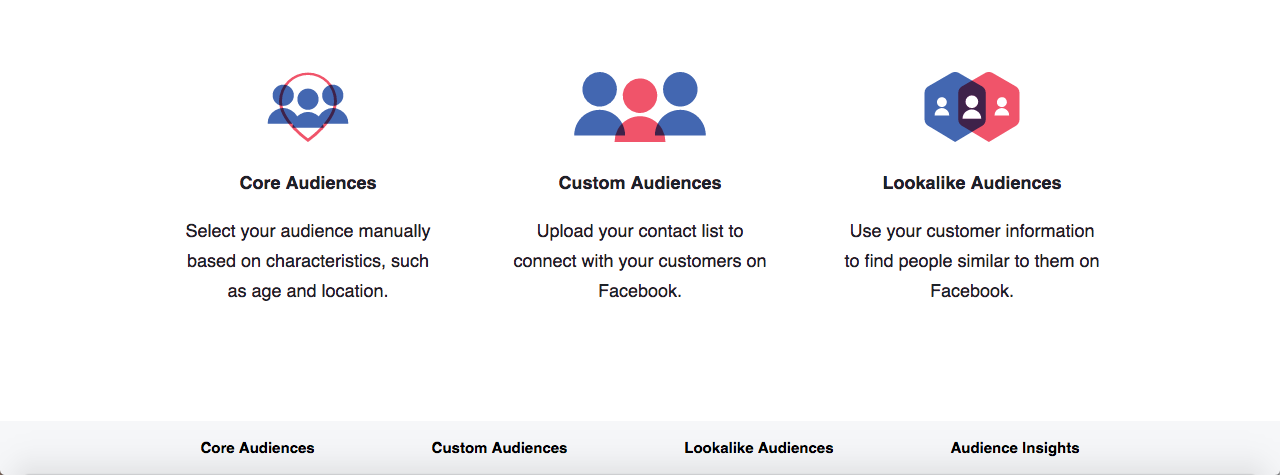
You choose your audience based on demographics, their behaviours, interests, and/or their contact information. There is a handy-dandy Audience definition (graph) to the right-hand side of the audience page (see the image below for an example). Use it to gauge how well you’ve defined your target audience. It will tell you the difference between how many people you are actually reaching versus how many people you could be reaching. To reach more of your targeted audience, increase your bids and budget.
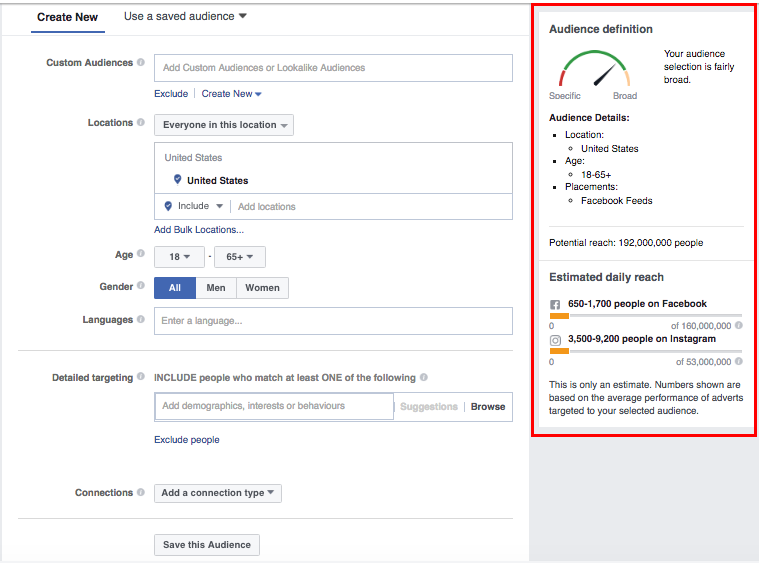 You can also choose where your adverts will be placed or you can let Facebook automatically select this for you. We recommend that you select “Automatic Placements” when you first start out. The available placements are:
- Facebook feeds (mobile and desktop)
- Facebook right-hand column
- Audience Network
Know Your Ad Budget
It’s important to know your budget before you start creating your advert campaign. Facebook has an ad for every budget making it affordable for everyone. It’s also important to know that there are two different types of budgets: Daily Budgets and Lifetime Budgets.
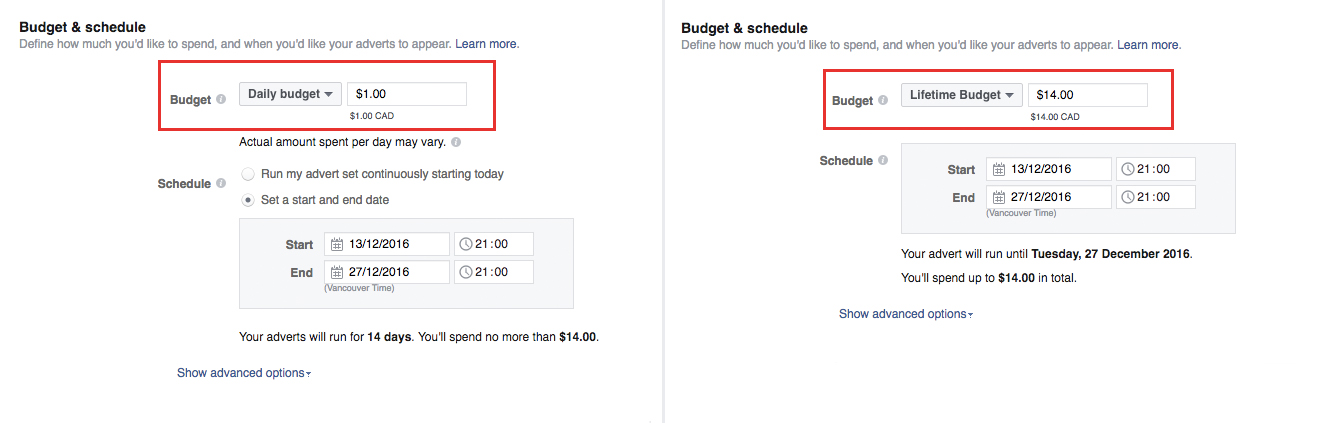
A Daily Budget is what you’re willing to pay for an ad per day. What you spend on the first and last days are prorated depending on the run time for those days. Meaning what time did the ad start on day one and what time did it end on the last day. Those two times may be different which is why the cost is prorated. The default minimum cost per day is still $1.00 for Daily Budgets. However, that doesn’t mean you’ll be charged $1.00 every day your campaign runs. For example, one day it might be $1.50 and another day $0.50 to maintain an average daily budget of $1.00. You can increase your daily budget to improve your ad’s exposure and reach. Remember, Facebook will always let you know the maximum amount you’ll spend during your campaign, so you don’t have to worry about going over budget.
A Lifetime Budget is what you’re willing to pay over the duration (lifetime) of an ad. Facebook tries to apply your budget evenly over the length of time the ad runs. The default minimum cost for Lifetime Budgets is $30.00, and like the Daily Budget, you can increase it to any amount you want which will improve your ad’s exposure and reach. Whether your ad runs for a week or a month, the cost will be at what you set it.
If you are just starting out, using the default Daily Budget option of $1.00 or even increasing it to $5.00 is more than enough to test the waters and see what works and what doesn’t. You can always change your budget once you’ve figured out which ad campaigns have worked the best for you.
Schedule Your Ad
Don’t forget to choose a schedule. There are two options:
- Run my advert set continuously starting today.
- Set a start and end date.
It’s up to you which option you choose, but if you’re someone who is a tad forgetful, then choose a specific time range. You can always stop the ad whenever you want. Remember the length of time your ad runs, also affects your budget. The longer it runs, the higher the cost. We recommend that you run an ad for no more than 3 weeks as Facebook ads tend to get stale by that point. You can always replace it with a new ad campaign with fresh images and text.
If you’re wondering how Facebook determines the cost of their ads, well it’s a bit complex and it doesn’t help that Facebook is constantly adjusting their formula. The exact cost associated with your advert being shown to someone is determined in Facebook’s Advert Auction. To learn more about it, read “Understanding how bidding and our ads auction work.”
Choose a Facebook Advert Format
Facebook adverts offer more format options than ever before. There are five to choose from: Carousel, single image, single video, slideshow, or Canvas. While most of these formats are self-explanatory, Carousel and Canvas are not.
Carousel lets you show up to 10 images and/or videos in a single ad. When people view your ad, they can scroll through the carousel cards. One of the benefits of Carousel is that it lets businesses tell a story through carousel cards or to showcase one long image that is divided between the carousel cards.
Canvas is Facebook’s newest format and it allows you to combine both images and video. You can tell a more in-depth story about your products and/or services. It is customizable and there is no one way to create a Canvas ad. If you choose to design a Canvas ad, it’s best to plan in advance what type of experience you want to create for the viewer and to have all your media materials ready in advance.
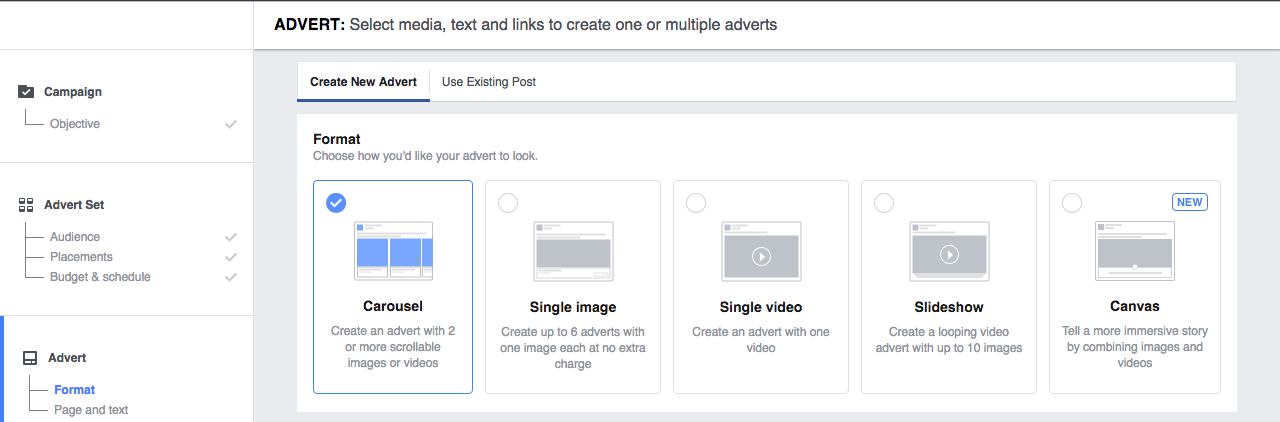
Your ad will appear on desktop, mobile news feed, feature phone, and Instagram, so it’s important to follow Facebook’s guidelines when designing your ad. You want to ensure it looks good everywhere it appears whether it’s on Facebook, Instagram or your mobile phone. Listed below are the recommended design guidelines to ensure your ad displays the way you want it to:
- Recommended image size: 1,200 x 628 pixels
- Image ratio: 1.9:1
- Text: 90 characters
- Headline: 25 characters
- Link description: 30 characters
- Your images should have minimal amounts of text. Facebook adverts that contain images with little to no text tend to cost less and have better delivery than adverts with image text. So, what count’s as text in your advert image? Logos, watermarks, and numbers.
For a comprehensive list of design guidelines for each marketing objective, read Facebook’s “Adverts Guide.”
It’s easy to use your own images. Just remember to size them properly beforehand otherwise, they won’t upload or they will be cropped. Don’t have any of your own photos? You can use the free stock images provided by Shutterstock via Facebook.
There are three areas on your advert to add text: Text, Headline, and Link Description. You don’t have to use all of them. What text you include is up to you, but it’s always a good idea to have a call to action. You can even use Facebook’s “Call to Action” button which offers a number of options such as contact us, learn more, download, signup, and etc.
You now have the option to add a Facebook Pixel to your ad campaigns. The Facebook Pixel is a piece of code that you install on your website. It allows you to more effectively measure the performance of your ad campaigns and it helps you determine exactly who sees your ads. Learn more about it in our blog post, “How do Facebook Pixels Work – Getting Set Up.”
While designing your ad, there is an advert preview pane to the right that updates every time you make a change. There is also a drop down menu that shows you what your ad looks like on other platforms or you can use the arrow buttons to scroll through. You can experiment with your ad’s format, images, videos and text until you are satisfied with the results. You can make your advert as fancy or simple as you like.
Tracking The Results of Your Facebook Ads
Okay, so you’ve created your ad, hit the “Place Your Order” button and it has been reviewed and accepted by Facebook. What’s next? Track and measure the performance of your advert campaign using Facebook’s adverts analytics tools. Information is presented in easy and simple visual reports. Your report includes topics such as reach, actions taken, details on the audience that you reached and more. Reports are also tailored based on which marketing objective you chose. Use these analytic tools to determine if your campaign was a success and met your objectives and goals. The data can also inform your future campaigns.
Are you ready to get started? Need help? Just let us know. Facebook ad creation and management is just one of the many services we provide.
About the writer: Gloria Botelho is a practicum student from the Digital & Mobile Marketing program at Simon Fraser University. Gloria lives in East Van and is obsessed with cats, flowers, street art and all things Portuguese.





 info@out-smarts.com
 604 909 3532